
TTY console mode
Press the TTY console switch to let the KIM simulator use a VT100 glass teletype in a console window. The standard KIM user interface is shown, see the manual how to use.
Note: set the PC keyboard to CAPS Lock, only uppercase is used in the KIM monitor itself.
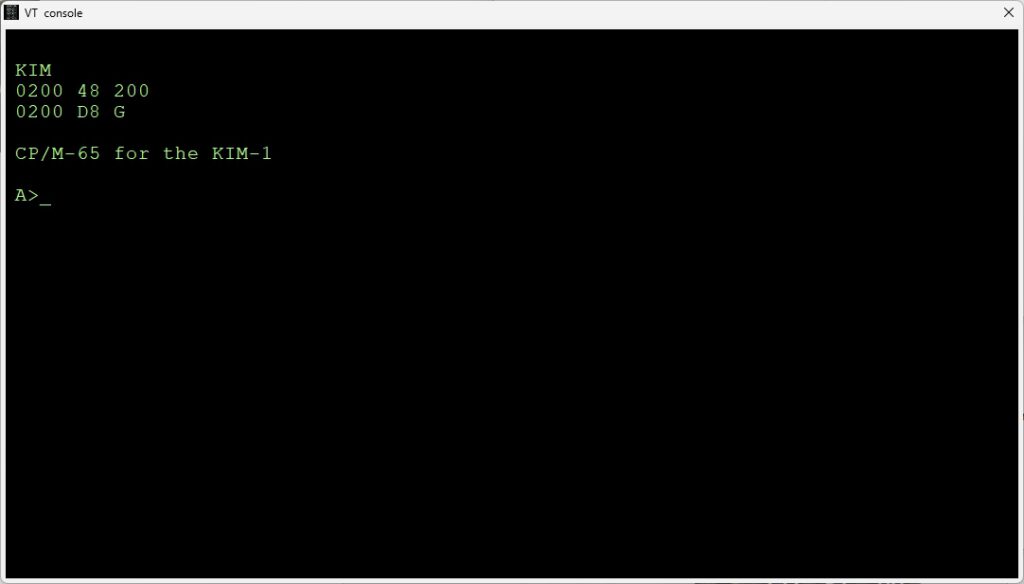
The console is an emulation of a VT100 video terminal (with ANSI color enahncements) connected to an ACIA (a Motorola 6850) in the KIM-1. The KIM Monitor is patched to send or receive via the ACIA and is transparant to the user of the KIM-1 I/O routines (even the quirks like flags and returned register values!)
The console is a window of 24 lines with 80 characters. There is a buffer of 1000 lines, use the scroll bar at the right.
You can copy and paste text to the console. Select text with the mouse, and use the right mouse button to show the pop up windows to copy the selected text to the paste buffer of your operating system. With he same popup menu you can paste text into the console. This is a handy flexible alternative to the File – Load text to console and File -Save text from Console on the main form of the Simulator.
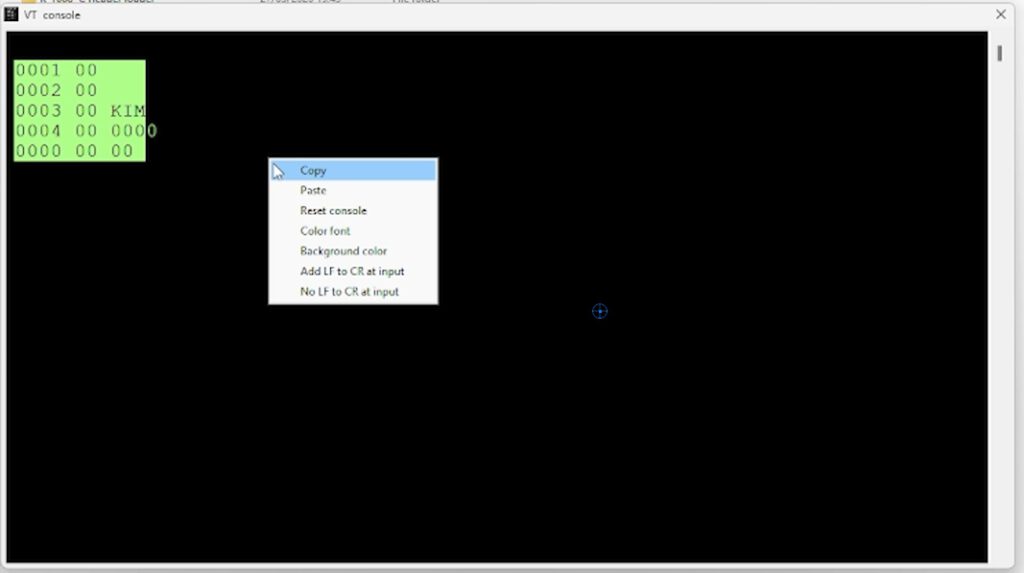
The popup menu also has functions like Reset console, change Color of the font and Background color and the way LF and CR are handled.
In settings you can also select the screen color settings with predefined like green, amber white. Settings there are saved across sessions.
The menu options of the main form have options to record a session, (Load Text to Console) or play (Save text from Console, followed by Stop saving text ) a text file in the console.
This is in fact the same functionality as a teletype with high speed papertape punch or reader. You can use this to load and save Basic programs as ASCII text files. Or use the KIM-1 tape routines built in KB9 Basic!
Keyboard input, when the console window has focus, is sent to the serial input of the ACIA. No local echo. The KIM-1 monitor only accepts uppercase (hint: Caps lock!), user programs are free to use upper or lowercase.
Characters sent tot to ACIA output are received by the console window and handled as a VT100 would do, a subset of the ANSI/VT100 is implemented.
All keys of the PC are usable, SHIFT works. Note the translation of codes from the PC keyboard to ASCII characters is the same as the operating system localizations.
Received characters by the console are handled as follows, a subset of the ANSI set.
Single control character
$01 : CursorHome
$04 : CursorRight
$05 : CursorUp
BS  : Backspace
TB  : Tab
LF  : LineFeed
FF  : ClearScreen
CR  : CarriageReturn
$13 : CursorLeft
$16 : DeleteToEndofLine
$18 : CursorDown
DEL : Backspace

<strong>ESC sequences</strong>, here some most used examples.
Nearly all VT100 cescape codes are supported.

ESC[K             Clear from cursor to the end of the line
ESC[0K            Clear from cursor to the end of the line
ESC[1K            Clear from the beginning of the current line to the cursor
ESC[2K            Clear the whole line
ESC[J             Clear the screen from cursor
ESC[0J            Clear the screen from cursor
ESC[1J            Clear the screen until cursor position
ESC[2J            Clear the screen and move the cursor to 0-0,
                  defined sprites are removed, loaded bitmaps are kept

<strong>Insert / Delete</strong>
ESC[1@            Insert a blank character position (shift line to the right)
ESC[1P            Delete a character position (shift line to the left)
ESC[1L            Insert blank line at current row (shift screen down)
ESC[1M            Delete the current line (shift screen up)

Move cursor
ESC[H             Move to 0-0
ESC[f             Move to 0-0
ESC[s             Save the cursor position
ESC[u             Move cursor to previously saved position
ESC[(Row);(Col)H  Move to row,column
ESC[(Row};(Col)f  Move to row,column
ESC[nA            Move the cursor up n lines
ESC[nB            Move the cursor down n lines
ESC[nC            Move the cursor forward n characters
ESC[nD            Move the cursor backward n characters

<strong>Attributes</strong>
ESC[m             Reset all attributes
ESC[0m            Reset all attributes
ESC[1m            bold
ESC[4m            underline
ESC[5m            italics
ESC[7m            Turn on reverse color
ESC[27m           Turn off reverse color

Color attributes

color     FG       BG      FG high  BG high
--------------------------------------------
black    ESC[30m  ESC[40m  ESC[90m  ESC[100m
red      ESC[31m  ESC[41m  ESC[91m  ESC[101m
green    ESC[32m  ESC[42m  ESC[92m  ESC[102m
yellow   ESC[33m  ESC[44m  ESC[99m  ESC[103m
blue     ESC[34m  ESC[44m  ESC[94m  ESC[104m
magenta  ESC[35m  ESC[45m  ESC[95m  ESC[105m
cyan     ESC[36m  ESC[46m  ESC[96m  ESC[106m
black    ESC[37m  ESC[47m  ESC[97m  ESC[107m

FG = foreground
BG = background
High = higher intensity

Note that setting colors can be combined attributes and
for/background in one Escape sequence is supported
You can use for example

  ESC [1;31;104m (bold, red foreground, blue background)

Printable character (>= $20) is placed on screen where the cursor is,
cursor moved to next position
Wrap around at end of line, screen scroll up when bottom line is reached
DEC Special Graphics Characters
The escape sequence ESC ( 0 switches the codes for lower-case ASCII letters to draw this set, and the sequence ESC ( B switches back.
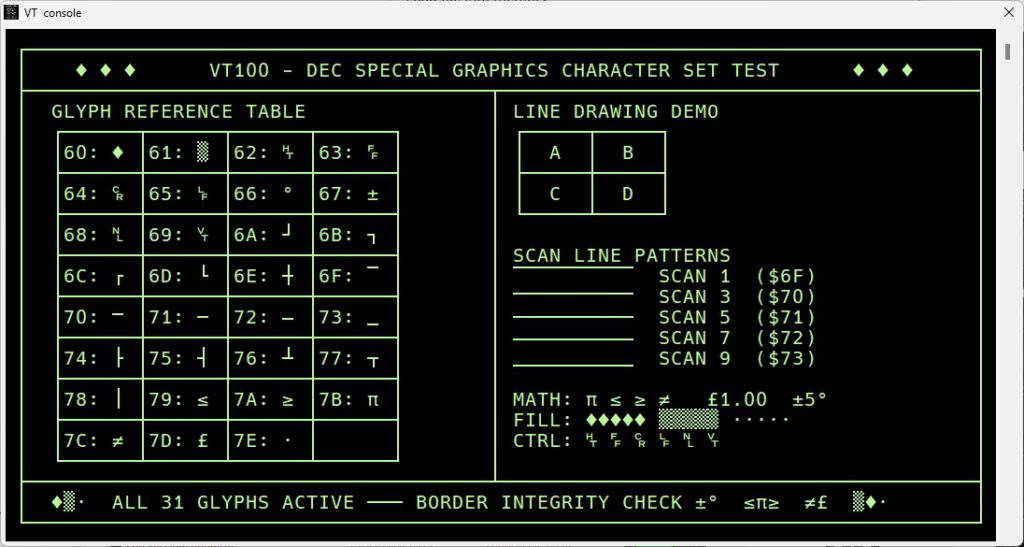
| Normal Set | “Special Graphics” Set | ||
| _ | Blank | ||
| ` | Diamond | ||
| a | Checkerboard (error indicator) |
||
| b | Horizontal tab | ||
| c | Form Feed | ||
| d | Carriage return | ||
| e | Line feed | ||
| f | Degree symbol | ||
| g | Plus/minus | ||
| h | New line | ||
| i | Vertical tab | ||
| j | Lower-right corner | ||
| k | Upper-right corner | ||
| l | Upper-left corner | ||
| m | Lower-left corner | ||
| n | Crossing lines | ||
| o | Horizontal line – Scan 1 | ||
| p | Horizontal line – Scan 3 | ||
| q | Horizontal line – Scan 5 | ||
| r | Horizontal line – Scan 7 | ||
| s | Horizontal line – Scan 9 | ||
| t | Left “T” | ||
| u | Right “T” | ||
| v | Bottom “T” | ||
| w | Top “T” | ||
| x | | Vertical bar | ||
| y | Less than or equal to | ||
| z | Greater than or equal to | ||
| { | Pi | ||
| | | Not equal to | ||
| } | UK pound sign | ||
| ~ | Centered dot | ||
| Note 1: | Codes 1528-1568, 1618, and 1648-1708 are used to draw rectangular grids; each piece of this line drawing set is contiguous with others so that the lines formed are unbroken. |
||