
The MTU Visible Memory is a memory mapped video display made by MTU. Supported by the KIM-1 Simulator.
See the MTU K-1008 pages how it works.
Enabling it will display a form on which the video memory is shown (according the packing of the pixels in bytes, see the manual).
Use the Settings from to enable or disable (default) the K-1008. The base address in memory can be set to what the original board allowed with jumpers.
The K-1008 display can be resized from 1x to 3x. Larger means a slower display, not much effort has been put in making it display fast.
A fourth option is to choose for a correct aspect ratio.
Screenshot of 1.3.3 with ‘correct’ aspect ratio.
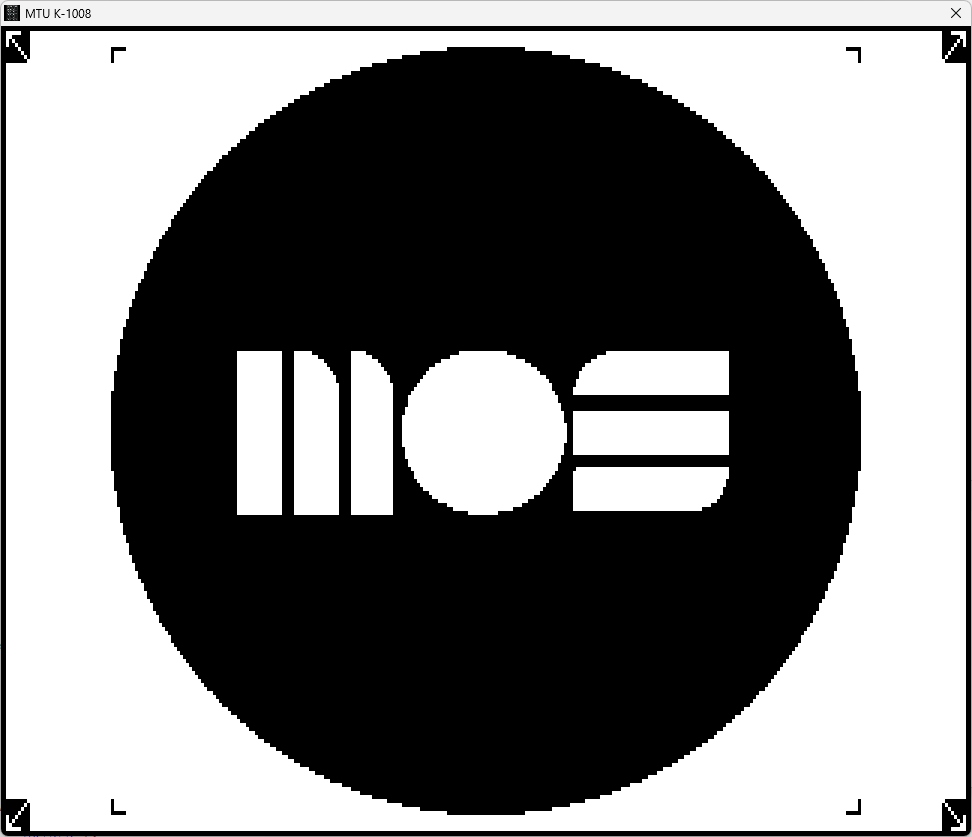
Note that the pixel only appears on screen when the corresponding memory location is written to by the CPU. Use Refresh in the Debugger to force the display.
Using MS Basic: the interpreter will detect the video memory as normal memory. No harm done, MS Basic does not support the K-1008. The memory test of MS Basic is visible on the K-1008 display!
There are several ways an image can be loaded to the K-1008 video display:
- Load a K-1008 formatted binary file into memory. It will show on the K-1008 display if enabled via Settings.
- The Refresh button in the debugger will also refresh the K-10008 display from memory
- With a C header file. see below
How to make a C Header image file with threshold
- Choose a high contrast image
- Load the image in GIMP (a freeware image processing app for Windows, Linux etc)
- Scale the image to 320×200 exactly(have the ties between the dimension windows untied)
- Use the Treshold tool to convert to black and white, play with the settings until it looks good
- Export to, choose the C header file format, a file
- This file can be loaded with the File menu entries of the KIM- Simulator main window and Debugger
- The file is converted if you load in it into memory
- If you have the K-1008 display on (see Settings) it will display it too
- Now you can save the image if you wish with the ‘Memory to file’ menu entries
Make a C Header image file with dithered images
- Open image in GIMP
- Crop the image to 320×200 or a multiple like 960×600
- Image – Scale the image to 320×200
- Image – Mode – Indexed to black white palette Floyd-Steinberg (normal)
- Image – Mode – RGB
- File -Export As Select file type – C source header
- Export
Note there is a command line program in the folder K-1008 load C Header , called LoadK1008 that converts a C header image file to a K-1008 formatted binary.
D:\k1008\LoadK1008.exe h
LoadK1008 is a program to convert a 320x200 C header file from GIMP to
MTU Visable memory K-1008 image
LoadK1008 <C header filename> <K-1008 binary filename>
Prepare the C header file in GIMP as follows:
- Load an image in GIMP
- Scale to 320×200 (detach the link between the sizes)
- Threshold or dither to black and white, play to get a nice result
- Export as C header file
- Feed the C header file to this program
- Convert the result, a binary file into a program like my Convert 8 bit hex formats (included with the KIM-1 Simulator) to a papertape format with the start address of the K-1008 (2000-C000)
- Load the papertape into the KIM-1 or KIM-1 Simulator
Also there are examples of C header and binary K-1008 formatted files.
Sources of LoadK1008 commandline
The folder K-1008 load C Header contains the Freepascal source and original JPG files.